User guide
Everything SafeNav can do, and where to find it. The in-app help assistant answers questions from this same guide — tap the question mark at the top of the map to ask it directly.
On this page
- What SafeNav is
- Where routing works
- Signing in and creating an account
- The home map
- Planning a route
- Home, Work and saved places
- Arrival times and traffic
- Setting a departure or arrival time
- Sharing a route
- Just drive
- Turn-by-turn navigation
- The compass and north lock
- Map layers
- No-go zones: drawing
- No-go zones: other ways to add them
- Changing a saved No-go zone
- Scheduled No-go zones
- Avoid zones
- No-go roads
- Grouping your own No-go zones
- Sharing No-go zones with a code
- Circles and location sharing
- Location sharing not updating
- Safe zones and safety buttons
- Watch my trip (escort mode)
- SafeNav subscriptions
- Ads on the free tier
- Notifications
- Settings overview
- Installing and updating (testers)
- Common problems
What SafeNav is
SafeNav is a navigation app for Android that routes around areas you want to avoid, and lets people in a circle (family or friends) share locations, routes and safety alerts. It is currently in testing.
Where routing works
Directions can currently be calculated in South Africa, Great Britain (England, Scotland and Wales), and the US states of California, Nevada and Arizona. Northern Ireland is not covered yet. A start or destination outside those regions can't be routed. The map itself works everywhere.
Signing in and creating an account
- Sign in, or create an account, with an email address and password, or with Continue with Google.
- SafeNav is for people aged 18 and over. Creating an account asks you to tick one box first: that you're 18 or over, and that you agree to the Terms of Service and have read the Privacy Policy - both linked right there, below a short summary of the safety information in the Terms (including that SafeNav is not an emergency service). The sheet can't be swiped or tapped away: you either tick the box and continue, or tap "I don't agree" and no account is created. If you sign in with Google for the first time from the sign-in tab, the same sheet appears on first opening the app, and tapping "I don't agree" signs you out again.
- Forgot your password: on the sign-in tab, tap Forgot password?, enter your email address and tap Send link. SafeNav always says "If there's an account for that address, we've sent a link to reset your password. Open it on this phone." - it says the same thing whether or not that address has an account, so it can't be used to find out who does. Open the email on the same phone you asked from and tap the link: SafeNav opens on a Choose a new password screen (at least 8 characters, typed twice). Once you set it you're signed in. If you tap Cancel and sign out instead, you are signed out - a reset link alone never leaves you silently signed in, and closing the app doesn't skip the screen: it is there again next time you open SafeNav. A reset link only works on the phone it was requested from, for up to an hour, and only once; if it has expired or was opened somewhere else, ask for a new one. After asking, SafeNav waits a minute before sending another, and asks you to wait a few minutes if the email service is busy.
- If you created an account but never confirmed your email, signing in with the right password says "Your email isn't confirmed yet. We've sent a new confirmation link to" your address, and sends a fresh link. Tap the link in that email, then sign in. SafeNav sends at most one new link a minute; if you tap again sooner it tells you to check your inbox and spam folder and how long until you can ask again. The confirmation page you land on after tapping the link is in your browser and doesn't open the app - go back to SafeNav and sign in. Emails come from [email protected] and can take a few minutes.
- If SafeNav's Terms change later, you may see a short sheet next time you open the app, saying what changed and asking you to accept the update - it never appears while SOS, a trip, Watch my trip or navigation is under way. You can close that one and it will ask again the next time you open the app.
The home map
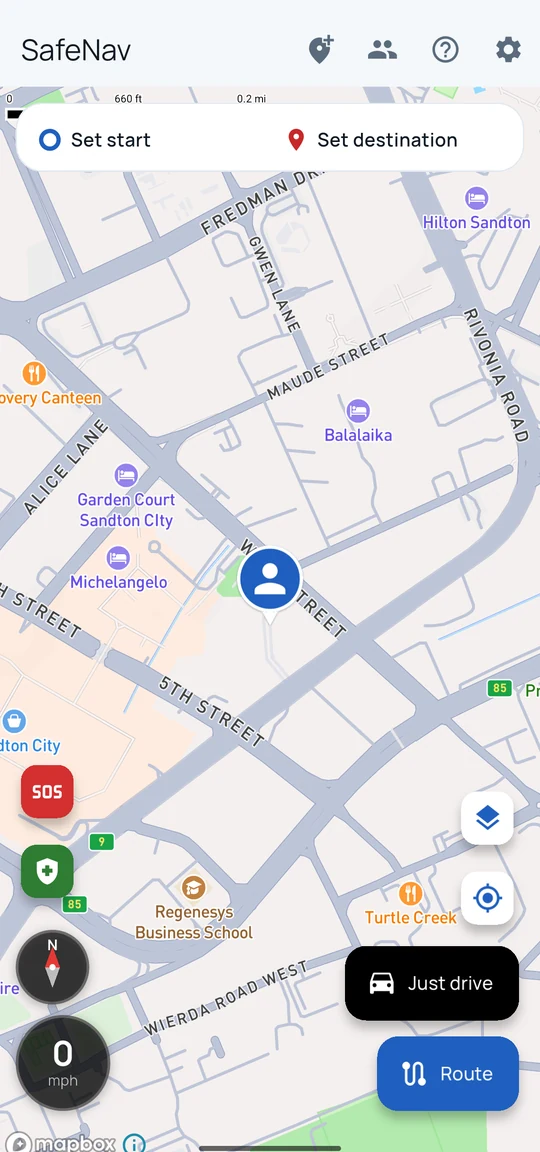
- Top bar, left to right: the zone button (a map pin with a plus), the people button (circle members; shown once you're signed in and sharing is set up), the question mark (this help chat), and the gear (Settings).
- Bottom right: Map layers, Centre on my location, then Just drive (when no destination is set) or Start (once a route with directions is planned) - never both at once - and Route. Sometimes neither shows: while a route is still loading or has no turn-by-turn directions, and Just drive is also hidden while Watch my trip is armed but not started.
- Your own marker: your profile picture (or a coloured person marker if you have not set one) shown as a round pin with a small point underneath. The point is your exact position, and the pin follows your phone's GPS while the home map is open, so it moves as you do. It always means you - it is not the route's start. When the route starts at My location, the pin is the start and there is no separate start marker. If you have chosen a different start, that start gets a plain dot and your pin stays on where you really are. Centre on my location moves the map to where the pin is. The pin is taken off the map while another screen covers it, while the app is in the background, or when your phone has no recent GPS fix, and comes back with the next fix, so it never sits where you are not.
- Bottom left: the red SOS button, the timer button for Watch my trip (only shown once a destination is set), the green Get to safety button, the compass, and the speedometer.
- The route panel at the top: Set start and Set destination side by side, then a button beside Set destination showing your travel mode's icon. Tap that button to show or hide the travel mode and route-action rows below it - the icon keeps showing your current mode even while they're hidden.
Planning a route
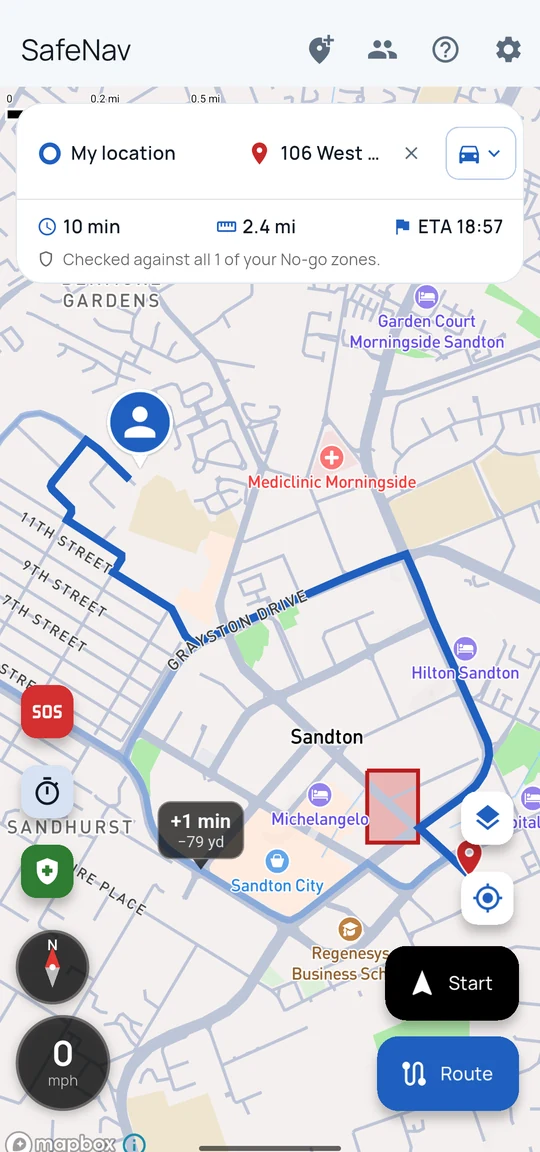
- Tap Set destination. Search for a place, choose Tap on the map and tap the spot, or pick Home, Work, a saved place or a recent destination if you have any. Results are ordered by the area on screen, and each shows how far it is from you when your current location is known. If nothing found is close, a Search nearby on OpenStreetMap row appears (results credited to OpenStreetMap contributors) — tap it to search again, only around the area on screen (roughly 25 km); it never searches automatically.
- Tap Set start - it offers the same shortcuts as Set destination (Home, Work, Saved, Recent, search, tap on the map), plus My location at the top for your current position.
- Tap the button beside Set destination (it shows your current travel mode's icon) to show the travel mode and route-action rows. Pick how you're travelling: Car, Motorbike, Cycle or Walk - these and the row below (Add stop, Save, Options, Routes, Nearby, Share) are icons rather than words; press and hold one to see its name.
- Tap Route (bottom right).
The route panel then shows the time, distance and arrival time, and warns if the route passes through one of your No-go zones. If No-go zone exclusion is only approximate right now rather than exact, the panel says that too. If the route crosses or goes round an avoid zone instead, a separate grey note explains that - see Avoid zones below. SafeNav only sends the routing server the No-go zones near a trip, and when No-go avoidance is exact, each route is checked against all of your active No-go zones before it is shown. A note under the route panel appears on the occasional trip where all of them had to be sent. If your start or destination is inside an active No-go zone, SafeNav refuses to plan the route and says so - use Get to safety to leave a zone you're in first, or choose a point outside it for the destination.
- When the start is My location, SafeNav checks your current position again each time you set or change the destination, add a stop, or change travel mode, rather than reusing wherever you were when you first opened the planner. If it can't get a fresh fix in time, it plans from the last position it knows and says so on the route panel, for example "Planned from where you were 6 minutes ago." If the best position it can get is only approximate (for example a coarse Wi-Fi or mobile-network fix, worse than about 100 metres), it waits a few seconds for a better one, and if none arrives it plans from the approximate one and says "Couldn't get an accurate location — planned from an approximate position."
- Add stop adds a stop along the way. The X beside a stop removes it.
- Share sends the route to someone else (see Sharing a route).
- Options holds route preferences: the departure or arrival time (see below), Avoid toll roads, Avoid motorways (and Also avoid A-roads for minor roads only), Avoid country roads, and Ignore No-go zones, which ignores your No-go zones and roads for this trip only. Whenever it's on, an amber line on the route panel says "Ignoring your No-go zones and avoided roads for this trip" - shown even on a route that happens to cross no zone - with a Stop ignoring button beside it to turn it straight back off. It's never sticky: changing the start, destination or a stop, or finishing, stopping or cancelling a trip you navigated with it on, switches it back off for whatever comes next; recomputing the same trip (route options, travel mode, alternatives, or an automatic reroute after an avoid-zone edit) leaves it as you set it. Finishing, stopping or cancelling a trip you navigated with it on also clears the route you were shown - your No-go zones apply again, so that route was never checked against them - and says "No-go zones are back on. Plan the route again to continue."
- Routes shows alternative routes to compare. Each alternative also shows a dark box on the map, with a small pointer touching its own line, giving its time and distance difference from the current route — tap the box, or tap the route line itself, to switch to it. If two boxes would overlap or one would sit off the edge of the map, that box is left off rather than shown crowded or cut off; the line underneath is still there and still switches the route when tapped.
- Nearby finds fuel, food, coffee, parking or toilets along the route and can add one as a stop.
- The X next to the destination clears the route.
- Tapping anywhere on the map (when not drawing) shows the place with Navigate here and Set start. Tap a business or place on the map to see its name, type and address, then tap Navigate here. (With Legacy map switched on, a tap shows the street address instead.)
Home, Work and saved places
- Open Set destination or Set start to see Home and Work at the top - tap Set Home or Set Work (or the pencil, to change it later) and choose Search a place to look up the address, or Tap on the map to touch the spot yourself. Tapping a named place on the map saves its name; otherwise the address is used. Both pickers show the same Home, Work, Saved and Recent list; tapping an entry sets it as whichever one you opened.
- Below them is Saved, your favourites - places you visit often, such as a gym or a relative's house. Tap one to set it as the start or destination.
- To save a new favourite: tap the star next to any Recent entry in the same list, or, once a destination is set, tap the button beside Set destination to show the route panel's button row, then tap Save. Either way it asks for a name, starting with the place's own name, which you can change.
- To rename or delete a favourite, tap the three dots beside it in the Saved list.
- Favourites are free with no limit that matters in practice - there's a generous cap (30) just so the list stays a quick list rather than a directory; you'll see a plain message if you ever reach it.
- Recent shows destinations you've navigated to before; tapping one in either picker sets it as the start or destination the same way. Picking a start this way, or from Home/Work/Saved, doesn't add it to Recent - that list is destinations only.
Arrival times and traffic
SafeNav uses live traffic when it can. Route alternatives are ordered by the traffic-adjusted time, and while navigating the trip bar shows how much of the journey is traffic, for example +5 min from traffic. Where traffic data is not available for a route, the times assume clear roads and are labelled No traffic data, and are often shorter than Google Maps or Waze. During navigation the arrival time also adjusts to your actual pace after about a kilometre, shown as Adjusted to your pace. Traffic pricing is limited to a set number of checks per device each day; once that's used up for the day, a trip already showing traffic keeps the traffic-adjusted time from earlier in the drive, and the trip bar says so - Traffic data paused for today · ETA from earlier in the trip (or Adjusted to your pace · traffic data paused for today), clearing again the next day. If the traffic service itself is having trouble rather than the daily limit, the trip bar instead says Traffic data unavailable · ETA from earlier in the trip (or Adjusted to your pace · traffic data unavailable). The Live traffic switch in Map layers is separate: it colours roads by congestion on the map.
Setting a departure or arrival time
- Plan a route, tap the button beside Set destination to show the route panel's button row, then tap Options.
- Tap the top row, which says Leave now until you change it.
- Choose Leave now, Leave at a set time, or Arrive by a set time, then pick the day and the time.
The route summary then shows when to leave and when you would arrive, for example "Leave by 17:20 to arrive 18:00". If the time to leave has already passed, it says so.
- A departure or arrival time mainly changes the times shown rather than the roads chosen.
- Clearing the route (the X by the destination) resets it to Leave now.
Sharing a route
- Plan a route, tap the button beside Set destination to show the route panel's button row, then tap Share.
- Pick how to send it (messages, email, anything on your phone's share sheet).
The link carries the start, stops and destination, not the line on the map, so the other person's SafeNav works the route out again around their own No-go zones.
- When they tap the link, it asks whether to open the route, then loads and calculates it.
- Someone without SafeNav is offered the download instead.
- The places in the link are never sent to a web server; they are handed straight to the app.
Just drive
- With no destination set, tap Just drive (bottom right) to open a driving screen with no route.
- It shows your speed, a compass, and a small bar with distance covered and time moving.
- Tap End to stop and go back to the map.
- If you cross into one of your No-go zones, the same red warning as turn-by-turn navigation appears and is spoken. If you're already inside an active No-go zone when Just drive starts, or when a zone appears or switches on around you, it tells you once, in softer wording, since nothing was actually crossed.
- SafeNav also predicts ahead: if your current direction and speed point toward a No-go zone, an amber "No-go zone ahead" warning appears and is spoken once, then stays quiet about that zone for a few minutes. It's a prediction from where you're heading, not a crossing, so it can occasionally warn about a zone beside your road that you don't actually enter - and it never replaces or cancels the red entry warning above, which still appears if you do cross in.
- A speed limit sign shows here too, worked out from your recent GPS movement rather than a planned route, so it can lag a little behind or be missing on some roads. The same SLOW DOWN warning applies, using the same Speed limit warnings switch in Settings as turn-by-turn navigation.
- There are no directions, no ETA, and nothing is rerouted - it's the driving screen without a planned trip. Your No-go and avoid zones are drawn on the map here too, the same colours as turn-by-turn navigation.
- The distance and time shown are not saved or shared anywhere; they're gone the moment you tap End.
- Just drive is a screen you have open, not a background watch - if the app is closed or the screen is off, it may not warn you. Location sharing, when it's switched on, keeps checking your No-go zones in the background, with the screen off too.
- If location is turned off or lost while Just drive is open, it tells you No-go warnings are paused until location is back.
- Setting a destination hides Just drive; Start appears once the route has turn-by-turn directions, and the two are never both shown. While the route is still loading or has no directions, neither shows. Just drive is also hidden while Watch my trip is armed but not started - start or cancel that first.
Turn-by-turn navigation
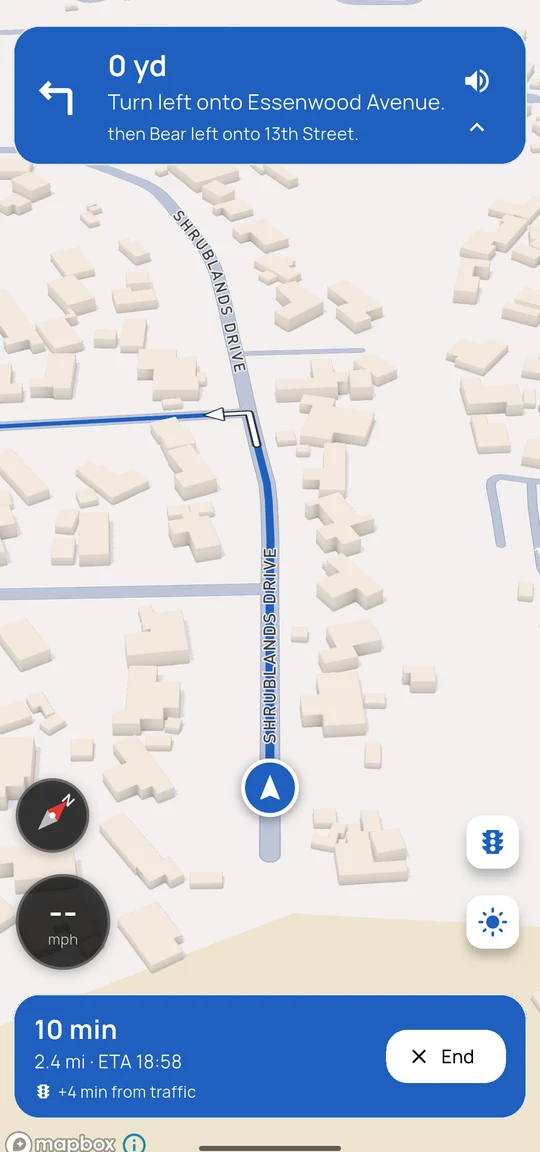
- Plan a route, then tap Start.
- The directions banner at the top shows the next turn. Tap it to shrink it to just the turn and distance, or to expand it again. By default it shrinks when the next turn is far away and expands as you get close.
- The speaker icon in the full banner mutes or unmutes voice directions.
- Tap End (bottom) to stop navigating.
- A white arrow on the route marks the next turn. Roundabout icons show whether the exit is to the left, straight on or to the right.
- A pin marks your destination at the end of the route, the same pin you see when planning it; it moves if the route changes - a reroute, or (when navigating to a circle member) their position or destination changing. A trip with stops along the way also shows a pin for each one you haven't reached yet - its pin disappears once you've actually passed that stop, not merely because of a reroute.
- If you leave the route, SafeNav reroutes automatically, starting in the direction you're travelling. A reroute still goes through every stop you added that you haven't reached yet - it only drops a stop once you've actually passed it. The exception is a No-go zone appearing, or switching on, over a stop you haven't reached yet: that stop is skipped rather than failing the whole reroute, and SafeNav tells you which No-go zone caused it.
- If you drag the map, it stops following you. It goes back to following you about five seconds after you stop touching the screen, or straight away if you tap the recentre button.
- A speed limit sign shows when the limit is known, with a SLOW DOWN warning if you're over it. To turn that warning off, go to Settings, then Map & navigation, then switch off Speed limit warnings; the sign still shows the limit.
- If you enter a No-go zone, a red warning appears and is spoken.
- If location is lost mid-trip - GPS signal gone, location switched off - the screen shows "Location unavailable — No-go warnings paused" and says it once; the No-go zone warning can't fire without a position to check it against. It clears, and can speak again on a later loss, as soon as location comes back.
- If you end up inside an active No-go zone mid-drive and SafeNav can't route you back out right now (a way out just failed, or you only just left a No-go zone and re-entered it), the screen shows "Rerouting paused while inside a No-go zone" - shown, never spoken, so a quiet moment doesn't look like nothing is happening. It tries again shortly, or as soon as you leave the zone.
- Your No-go and avoid zones are drawn on the map while you're navigating too, not just on the main map - same colours, and an avoid zone still shows its dashed outline. They still show even on a trip where you chose Ignore No-go zones, so you can see what you chose to route through. That trip also carries an amber "Ignoring your No-go zones and avoided roads for this trip" line on the driving screen, shown, never spoken - but only for as long as it stays true. If your No-go zones or avoided roads change during that drive - you, or someone in your circle, adds or edits one - SafeNav tries to reroute around them, the same as any other trip. The amber line disappears once that reroute actually lands - not the instant the zones change - and does not come back for the rest of the drive, even if you remove every zone again; if the reroute can't complete right away, the line stays up until one does.
- The traffic light button shows live traffic colours; the sun or moon button switches between light and dark map.
- A "Faster route" banner can appear if traffic makes another way materially quicker - at least 3 minutes and 15% faster, and at most one suggestion every 10 minutes. Tap it to switch, or dismiss it and it stays quiet.
- A card above the trip bar can offer another route worth considering - at least 2 minutes and a tenth of the time left - with a faint line on the map showing which way it goes. Tap the card, then tap Take it to confirm; a stray tap can't switch you by itself. SafeNav says the saving out loud once when the card first appears for that road, then stays quiet about it - unless you've muted voice directions, in which case it says nothing at all. Tapping No means SafeNav won't offer that road again this trip, on the card or the "Faster route" banner. Without live traffic data the comparison uses typical speeds for both roads, and the card says so. If the other road goes through one of your avoid zones, the card names it.
The compass and north lock
- Tap the compass to turn the map to face north. Tap it again to lock the map facing north (a padlock appears); tap again to unlock.
- Settings, then Map & navigation, has Compass can lock the map to north, and Separate north lock for navigation, which lets the map stay north-up while planning but face your direction of travel while navigating.
Map layers
The Map layers button (bottom right) chooses the map style - the street map, satellite, or Auto, which switches to satellite when you zoom in - and has switches for Live traffic and Dark mode. The same map style choice is also in Settings, then Appearance.
No-go zones: drawing
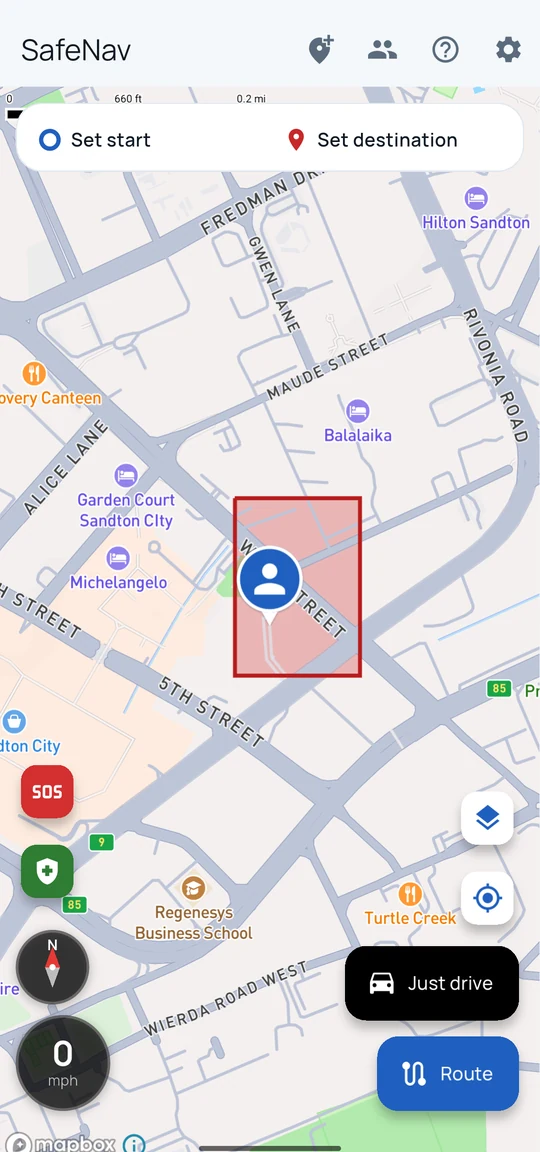
- Tap the zone button (top bar), then Draw No-go zone.
- Tap the map to place points around the area. At least 3 points are needed.
- To adjust: drag a point to move it; tap a point to select it (it turns red), then Delete point in the bottom bar to remove it; tap it again to deselect. Tap or drag a hollow dot in the middle of a line to add a point there.
- Undo steps back through changes; Cancel stops drawing. Undo, Cancel and Delete point are icons in the bottom bar rather than words - press and hold one to see its name. Save zone keeps its label.
- Tap Save zone, give it a name, and choose Just me or a circle to share it with. If saving to Just me, also choose No-go zone or Avoid zone - see Avoid zones below.
- If the outline turns red, its lines cross each other and it can't be saved until you move a point to untangle it.
- The banner shows the zone's area and distance around, and warns if it is getting too big to avoid exactly.
- The routing server has a limit on the combined distance around all your No-go zones together, not any single one. Zone Management, and the save dialog when adding or reshaping a zone, show that combined total once it's within reach of the limit. Routing only sends the zones near a trip, so passing the limit rarely affects a route any more - but a trip near many of your zones at once can still be refused; moving, shrinking or removing one keeps more room to spare.
No-go zones: other ways to add them
- Zone button, then Search for a No-go area: search a suburb or area and SafeNav uses its boundary. For a single place with no boundary, such as a shop, it offers to make a circle around it with a radius you choose.
- Detailed boundaries with many points can't be edited point by point; Simplify to 20 points to edit makes them editable (Undo restores the detail).
- Zone button, then Add zones from a code: add zones someone shared with you (see Sharing No-go zones).
Changing a saved No-go zone
- Tap and hold the zone on the map, then choose Edit shape, Rename, Move to group… (your own zones only - see Grouping below) or Delete. Where zones overlap, you choose which one.
- Deleting shows Undo for a few seconds.
- Zones can also be managed in Settings, then Zone Management.
- A zone shared with a circle can only be changed by the person who added it or the circle's owner.
- If a route is planned, changing a zone from the map reroutes it automatically. Changing one from Settings or Zone Management instead waits until you go back to the map, then reroutes once if the change actually affects the route - so switching several zones or groups on and off in Settings doesn't reroute after every tap.
Scheduled No-go zones
- A zone with a schedule only avoids and warns during the times set; outside those times SafeNav may route through it and won't warn on entry.
- To set one: tap and hold a personal zone on the map, or find it in Settings, then Zone Management, and choose Schedule. Pick a preset (Every night, Weekends, Weekday evenings) or set your own days and times, up to 7 time ranges, then Save schedule. The first time you schedule a zone, SafeNav explains that outside those times it may route through the area and won't warn on entry - confirm to continue.
- Schedule times are the zone's own time zone (guessed from where it is, changeable in the editor), not the phone's - the editor names it when it differs from the phone's.
- Always on (remove schedule), in the same editor, removes a zone's schedule - this is never limited, whatever your plan.
- Scheduling a zone needs the Advanced avoidance pack; without it the editor still opens and works the same way, with a padlock on Save that explains the pack and links to SafeNav subscriptions. Only your own personal zones can be scheduled; a zone shared with a circle cannot be, yet.
- An off-now scheduled zone is drawn fainter on the map with a label such as "Off until 21:00" (or "Off until Fri 21:00"). An active zone, scheduled or not, looks exactly like an ordinary No-go zone.
- If a planned route goes through a zone only because its schedule has it off for that trip, the route panel shows a separate, neutral note explaining that - distinct from the red "This route passes through..." warning, which still means the zone was actually crossed while active.
- The zone's tap-and-hold menu and Zone Management show each schedule's state, for example "On 21:00–06:00 every day · off now", or "Always on (schedule paused - Advanced avoidance has ended)" if the pack has lapsed.
- If Advanced avoidance ends on the account (a lapsed purchase or a refund), every schedule is kept but ignored - the zones become always on, avoiding more than a schedule would, never less - and Zone Management shows a notice saying so. Nothing is deleted, and the schedules come back if the pack does.
Avoid zones
- An avoid zone is different from a No-go zone: SafeNav goes round it only when that adds a few minutes at most (up to 10); if there's no quick way round, it drives straight through, and it gives no warning, no red highlight and no circle alert when you enter one.
- When saving a new personal zone, the save dialog asks "How strictly should SafeNav keep you out?" with No-go zone and Avoid zone options. No-go zone is always selected first, every time. Picking Avoid zone the first time ever, or converting an existing zone to it, shows an explainer confirming the difference before it takes effect; its two buttons are Make it a No-go zone and Keep as avoid zone.
- To convert an existing personal zone afterwards: tap and hold it on the map, or find it in Settings, then Zone Management, and choose Change to avoid zone… or Change to No-go zone. Changing to No-go zone is instant, free and needs no confirmation. Changing to avoid zone needs the Advanced avoidance pack and always shows the explainer first.
- On the map, an avoid zone has a dashed outline instead of a solid one, and is never drawn red - a personal avoid zone is slate grey, a circle one is purple, the same purple as a circle No-go zone. In dark mode every zone colour is drawn lighter so it stays visible on the night map: No-go zones a brighter red, avoid zones a light blue-grey, and circle zones a light purple. Zone Management and the tap-and-hold menu also tag it "Avoid zone".
- Zones shared with a circle can't be made avoid zones yet - only your own personal zones can be.
No-go roads
- Zone button, then Mark a No-go road (tap the map): tap roads to mark them No-go, then Done.
- Zone button, then Search for a No-go road: search a road by name to mark the whole road No-go, such as a motorway.
- Zone button, then Manage avoidances lists your No-go zones and roads, with Clear all options.
Grouping your own No-go zones
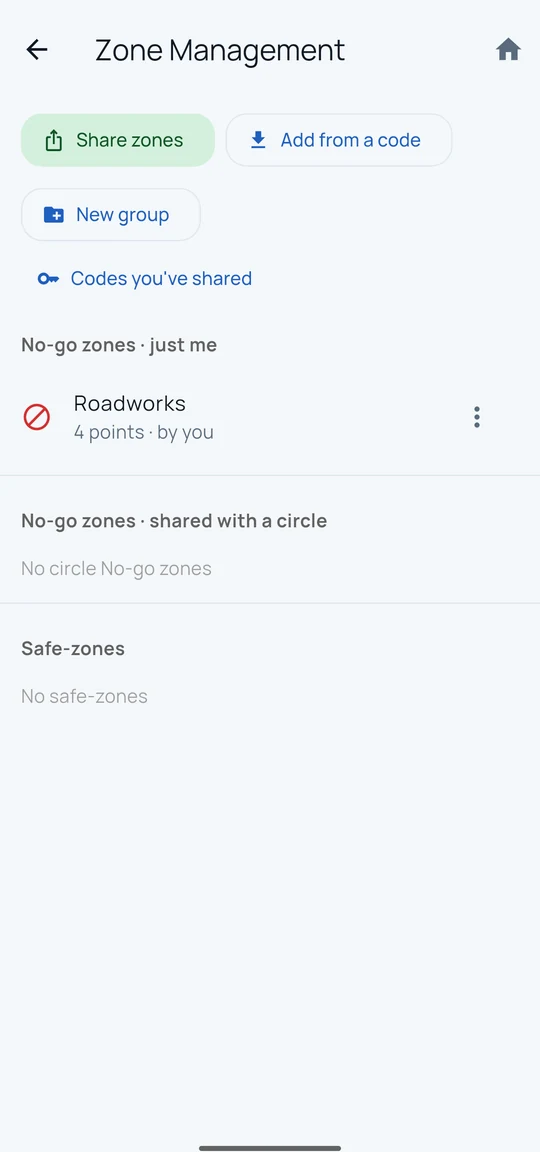
A group is a set of zones that switches on and off together, for example "Work trips" or "Night routes". Switching a group off means routes ignore its zones and they disappear from the map, but they are kept.
- To make one: Settings, then Zone Management, then New group, and give it a name.
- To put a zone in it: find the zone in Zone Management, tap its three-dot menu, then Move to group, then pick the group. The same menu has New group if you'd rather make one there and then. You can also do this from the map: tap and hold a personal zone, then Move to group…, which works the same way.
- To take a zone out: the same menu (Zone Management's three-dot menu, or the map's tap-and-hold), then Move to group, then No group.
- The map's tap-and-hold menu shows the zone's group (or "Not in a group"); in Zone Management, a grouped zone is listed under its group's heading instead.
- Each group has an on/off switch in Zone Management, and its three-dot menu can rename it, share it as a code, or delete it. A planned route only reroutes for this once you go back to the map, not after every switch you flip.
- Deleting a group asks whether to keep the zones or delete them too.
- Groups added from someone's share code work exactly the same way.
- Zones shared with a circle can't be grouped - only your own personal zones can be, so Move to group… doesn't appear for one.
Sharing No-go zones with a code
- To share: Settings, then Zone Management, then Share zones. Tick the zones, give them a name, and tap Create code. Send the 8-character code (like K7QM-3XTP) to the other person; Copy code copies it.
- To add a code: the zone button, then Add zones from a code (or Add from a code in Zone Management). Type the code, check the preview, and tap Add.
- Added zones are the other person's copy at the moment the code was made: later changes by the sharer don't affect them.
- Added zones appear as a group in Zone Management with an on/off switch, the same as a group you make yourself.
- Codes you've shared (in Zone Management) lists your codes; revoking one stops new people adding it but doesn't remove anyone's existing copy.
- Only your own zones can be shared, not circle zones. A code can't be added twice, and you can't add your own code.
Circles and location sharing
- A circle is a group of people who can see each other's location, routes and alerts.
- Settings, then Circle Management: Share my location (turns sharing on or off), Auto-share my route, Routes shared with me, and Manage circles (create a circle, join one with an invite code, invite members, leave). The circle's owner can also remove a member, with a confirmation naming who.
- Auto-share my route (Settings, then Circle Management) shares your computed route with your circle automatically, kept fresh on every reroute. It has a limit on how many routes you can have shared at once and how large one route can be; since it runs in the background, a share that fails for either reason shows a brief "Couldn't share this route with your circle" notice, once per trip rather than on every reroute. Shared routes are removed when you clear the trip, and automatically after 7 days.
- Joining a circle: before you confirm, SafeNav tells you plainly what members see - your name and photo always, and while your own location sharing is on, your live location, speed, battery level, any destination you share, your SOS alerts and any zones you add. You can leave any time. Confirm or cancel right there; nothing about the specific circle (its name, its owner, how many people are in it) is shown until after you join, so guessing at a code learns nothing extra.
- Existing members are told when someone new joins: a push, and a "Joined ..." line under the new member's name in the circle's member list. This can be turned off per person (Settings, then Notifications, People) or for the whole category (Settings, then Notifications, Circle joins) - it is the one notification category besides SOS's own rule that behaves specially: unlike SOS, it CAN be turned off, because it's informational rather than a safety mechanism.
- Entering a wrong invite code too many times pauses further attempts for a while, with a calm message and roughly how long to wait - this is a safety limit against someone guessing codes, not a bug. Re-typing the exact same wrong code doesn't count against the limit; only genuinely different wrong codes do. While the pause lasts, no code can be tried, not even a correct one, so check the code with the person who shared it before trying again.
- The people button (top bar) lists circle members: centre the map on someone, navigate to their live location, or navigate to their shared destination. If they're intercepted instead, SafeNav aims for a point on their own route where your ETAs roughly match, updating as they move. If a member's position, shared destination, or an intercept point turns out to be inside one of your No-go zones, SafeNav can't ask them to "choose a different destination" the way it can for your own trip - instead it routes to the nearest point on that zone's edge, and says so ("Routing to the edge of No-go zone '<name>', nearest to <name>.").
- Circle members are shown by display name only - SafeNav never sends anyone's email address to another member, owner included. Change your own name any time from Settings, then Account Settings; circle-mates see the new name next time they open the app.
- If an owner removes you, you stop seeing that circle's members, locations, zones and photos straight away, and any route someone shared with you disappears if you no longer share a circle with them. You aren't sent a notice naming who removed you or why - you'll notice the next time you open the circle. Removing someone also changes the circle's invite code, so a code you already had - even one you never used - stops working the moment you're removed. You can't rejoin with that old code or the new one; only the circle's owner can let you back in. Other members keep inviting with the current code as before. You also lose the ability to rename, edit, reschedule or delete any zone you added to that circle while you were a member.
- Members appear on the map as their profile pictures (round photos with a small point underneath marking their position, like your own marker) once both people have sharing on.
- A free account can own one circle of up to three people (including the owner). Joining other people's circles has no limit. The Circles pack (or Everything) raises that to 6 circles you can own, 13 people in each - see SafeNav subscriptions below. Nobody is ever removed for being over a new, lower limit: everyone already in a circle stays, only new joins are affected.
Location sharing not updating
- SafeNav asks for location "While using the app" - there is no "Allow all the time" step. Sharing keeps running with the screen locked or SafeNav in the background because it runs as a foreground service, shown by the ongoing "SafeNav - sharing location" notification. Don't rely on it after you swipe SafeNav away completely or force-stop it - sharing may stop, so reopen the app to resume. If the location permission was set to Don't allow, turn it back on to While using the app in Android Settings, then Apps, then SafeNav, then Permissions.
- Choose Precise location, not approximate.
- Some phones, especially Samsung, Xiaomi, OnePlus and Huawei, stop background apps to save battery. In Android Settings, then Apps, then SafeNav, set battery usage to Unrestricted.
- A notification shows whenever sharing is running: Live means someone is watching or you're navigating a shared route, so updates are every 20 seconds; Battery-saver is the normal state otherwise; Stationary means you've been in the same place for a while, so updates have backed off further to save battery. Moving again brings any of these straight back to 20-second updates.
- If that notification instead says "sharing trouble" ("No update has been confirmed yet" or "No confirmed update since" a time), SafeNav has not been able to confirm an update reached the server for about two minutes running - a phone with no signal for a moment is normal and does not trigger this. It switches back on its own, saying "Confirmed again", once an update goes through - no action needed, though if it keeps happening the phone may have lost the sign-in this feature runs on and reopening SafeNav can help.
- Turning Share my location off (Settings, then Circle Management) tries a few times to erase your last position from the server before it's done. If that can't be confirmed, the switch still shows off - the service really has stopped - but it also says your last position might still be visible, with a Retry button, rather than just saying "off".
Safe zones and safety buttons
- Safe zones are circles on the map (such as Home or School) attached to a circle; members are told when someone arrives at or leaves one. Add one from the zone button, then Add a safe zone. Show safe zones on map turns their display on or off.
- The red SOS button asks you to confirm, then sends immediately - it never waits more than about 5 seconds for a GPS fix. If one arrives in time it sends with your current location. Otherwise it sends with the most recent position it already has, and says what it knows about it: how old it is when that's known ("from 4 min ago"), or that it's your last known location without claiming an age when it isn't. If no location at all can be found, it still sends, saying so plainly and that you should turn location on. Turning on location sharing (so your circle can keep following you live) is only offered after the alert has already gone out, so a permission prompt can never delay it. It always tells you what actually happened - reached everyone, reached some, or nobody was alerted - and if nobody was alerted it says so plainly and gives emergency numbers (999 or 112 in the UK, 10111 or 112 in South Africa, or 911 in the US), rather than assuming it worked.
- The green Get to safety button routes you to your nearest safe zone, getting you out of a No-go zone first if you're inside one. It ignores avoid zones.
Watch my trip (escort mode)
- Set a destination, then tap the timer button near SOS to set up watching your trip. Pick when you expect to arrive and which circle members should watch it.
- Basic Watch my trip - one watcher, a deadline, and the server-side alert if you don't check in - is free for everyone, always. The Watch my trip pack (or Everything) raises that to 5 watchers and unlocks extra Watch my trip features as they arrive. Once you've picked as many watchers as your plan allows, the rest show a padlock instead of a checkbox; tapping one explains the limit and links to SafeNav subscriptions. The watchers you've already picked, the deadline and the destination all keep working.
- Setting it up arms the trip - it does not start watching yet. Watching begins when you either start turn-by-turn navigation to that destination, or tap Start watching now on the trip card. Until one of those happens, nobody can see the trip and nothing can be flagged.
- The time you expect to arrive is a length of time from whenever watching actually starts, not a fixed clock time. Set it up at 5pm expecting a 1-hour trip but don't start driving until 5:30, and you're flagged at 6:30, not 6pm.
- Only the people you pick can see the trip once it's watching, and only for as long as it runs plus 7 days afterwards - it isn't shared with your whole circle the way location sharing is.
- Starting to watch also shares that destination with your watchers and replaces any destination you were already sharing, and it needs location sharing to be reachable to know you've arrived.
- If you haven't arrived by the time you expected, SafeNav asks on your phone whether you're OK. Tap I'm fine to clear it and get more time.
- If you don't answer in time, your watchers are told you haven't confirmed you're OK and roughly where you were last heard from. This check runs on SafeNav's server, not your phone, so it still happens if your phone loses signal, runs out of battery, or is switched off - that is the point of the feature.
- That doesn't have to be the last thing they hear. The trip stays on your card afterwards with two buttons: I'm OK - keep watching tells your watchers you're fine and carries on watching with a fresh deadline; I'm OK - end trip tells them you're fine and stops the trip there. Either way, your watchers are told you've confirmed you're OK - it doesn't just sit there unanswered. If you somehow end up with more than one overdue trip at once, either button resolves all of them together, and says so.
- Watch my trip cannot tell whether you are actually fine, only whether your phone answered in time - it can't help if someone is standing over your shoulder making you answer, and it doesn't replace calling for help in an emergency.
- Cancel a trip that's armed but not yet watching, or check in on one that is checking, from the card that appears on the map. Cancelling an armed trip tells nobody, because nobody could see it yet.
- Ending a trip that is watching - from the card, or from the "stop watching too?" question when you end navigation - tells your watchers you've stopped it. Arriving at the destination ends it automatically, as it always has, and is covered by the arrival alert you already get rather than a second one.
- If a red bar appears while navigating saying "Nobody is watching this trip. SafeNav could not start it", watching did not start - usually because there was no signal at the moment you tapped Start. The trip is still only armed, so nothing will be flagged if you don't arrive. Tap Retry on that bar. The bar disappears once watching has actually started.
- The trip card also shows how many people are currently watching, once it's live. If a circle owner removes your only watcher, the card says "Nobody is watching this trip now" and you're sent a push saying the same - unlike the red bar above, watching HAD started here, so this means it has just stopped. Add a watcher or end the trip. If another watcher remains, you're told someone stopped watching and how many are left, rather than nothing at all.
- Ending navigation asks whether to stop watching as well, and keeps watching unless you choose to stop. Watching deliberately does not end by itself when you stop navigating.
- Ending navigation while a trip is watching asks whether to stop watching too. Keep watching is the safer choice, and it's what happens if you dismiss the question without answering - watching does not stop just because you stopped navigating.
SafeNav subscriptions
- Settings, then SafeNav subscriptions: SafeNav has three packs - Circles (more circles you can own, more people in each), Watch my trip (more watchers per trip, plus advanced features as they arrive), and Avoidance (scheduled zones, and creating or converting avoid zones). Two ways to have them: Any 1 pack - pick one of the three - or Everything, which is all three. Both remove ads. A monthly or annual price is shown for each; annual costs about ten months' worth of the monthly price. A padlock anywhere in the app means a pack would raise or remove that limit; the feature it's next to is always shown, never hidden, and tapping a padlock opens SafeNav subscriptions with the right pack already picked.
- Right by the buy button, SafeNav shows the price and billing period, that it renews automatically until you cancel in Google Play, the trial terms where one applies (currently a 7-day free trial on the monthly Everything plan), and links to the subscription terms and the refund policy.
- If you live in South Africa and are on an annual plan, you can cancel at any time on 20 business days' notice by emailing [email protected], and the unused part of the year is refunded with no cancellation charge. Cancel in Google Play as well, so it doesn't renew.
- If you have Any 1 pack, you can change which of the three packs it covers once a month, from the same screen - the screen states that before you subscribe, and shows what changing away from a pack means for what you already have (nothing is ever deleted, and nobody is ever removed from a circle just from changing packs).
- Nothing is for sale yet. Every button on the subscriptions screen currently reads "Not on sale yet" and tapping it does nothing. Scheduling a zone and making one an avoid zone already work (see Scheduled No-go zones and Avoid zones above) behind a padlock, but bulk-importing zone sets from a file isn't built yet.
- Once subscriptions do go on sale (they have not yet): you need to be signed in to subscribe - signed out, the button reads "Sign in to subscribe" and the screen says why, because the subscription belongs to your SafeNav account and comes back whenever you sign in on a new phone. Prices are shown in your own currency, as Google Play lists them. If a free trial is on offer for the plan you picked, the screen states how long it is and the date of your first charge before Google Play's own payment sheet opens; if Google Play offers you no trial, none is mentioned. If the prices can't be loaded, the screen says it can't reach the store and offers Retry.
- Once on sale: changing between plans is always a change to the subscription you already have, never a second one. Moving from Any 1 pack up to Everything, or from monthly up to annual, happens straight away - Google Play credits the time left on your current plan and charges the difference. Moving down, from Everything to Any 1 pack or from annual to monthly, takes effect when the period you've paid for ends; until then you keep everything you have now, and the screen shows what you'd give up and the date. For Everything to Any 1 pack, the pack you choose is saved with your subscription at that point, so it is already in place when the change takes effect. Choosing a pack is saved before Google Play's sheet opens, so closing the app during payment doesn't lose it. The screen refuses to start a second subscription on the same Google account.
- Once on sale: if you have Any 1 pack but no pack is chosen yet (for example you subscribed on another phone), a banner at the top of the home screen and of the subscriptions screen reads "Choose which pack your subscription covers", with a one-tap chooser. It can't be dismissed, and while it shows all three packs are switched on for up to 72 hours. If nobody chooses within 72 hours, SafeNav sets the pack you picked when you subscribed or, failing that, Circles, and sends a notification saying so; you can change it afterwards, and that first change doesn't use up your once-a-month change. Also on the subscriptions screen: Manage subscriptions opens your Google Play subscriptions list, where you cancel or change payment, and Restore purchases re-attaches a subscription already on your Google account. Reinstalling and signing in again brings your plan back without tapping Restore. If Google Play shows a subscription that SafeNav hasn't confirmed yet, the screen says so, asks you to retry, and gives [email protected].
- No-go zones have no limit and are free forever, with or without any pack - packs add convenience and scale (more circles, more watchers, scheduling, avoid zones, no ads), never more safety. SOS, No-go zones and their warnings, and basic Watch my trip are always free and are never behind a pack. Avoid zones do need the Advanced avoidance pack to create; changing one back to a No-go zone is always free, and an existing avoid zone keeps working even if the pack lapses.
Ads on the free tier
- Ads are not live yet either - like the packs above, they turn on together with the first subscription going on sale, so Remove ads never leads to a screen with nothing to buy.
- Once live, a free account may see one small banner ad, at the top of the home map screen only. It is never shown on the driving screen, during a trip, while Watch my trip is armed or watching, or for about an hour after sending an SOS.
- The ad is non-personalised for everyone - it does not use your location, circles, trips or zones, and does not change based on anything you search, draw or drive. Google AdMob still receives your device's IP address and an advertising ID, and may estimate an approximate location such as your city from the IP address.
- A small Remove ads link sits on the banner itself and opens SafeNav subscriptions. Any paid plan - Any 1 pack or Everything - removes ads completely, for as long as it's active; switching between packs never brings ads back.
- The first time it's relevant, SafeNav shows a consent screen about the ad and asks for your choice. Settings, then Ad privacy choices (shown once you've seen that screen) lets you change your mind at any time.
- Ads can stop appearing for everyone at once if SafeNav turns them off; nothing needs reinstalling for that to take effect.
Notifications
Settings, then Notifications:
- Switches for Safe-zone alerts, No-go zone alerts, Arrival alerts and Circle joins (told when someone joins a circle you're in). SOS alerts cannot be turned off - there is no switch for them, only a note saying so.
- Warn me in my No-go zones: a warning to yourself when you enter one of your No-go zones.
- Under People, turn off alerts from a particular person; under Places, turn off alerts about a particular place. SOS alerts always come through, even from someone you've turned off. These sections appear once you have circle members or places.
- Send a test notification checks that alerts reach the phone. If it doesn't arrive, check notifications are allowed for SafeNav in Android settings.
- If the Notifications row says "Not working on this phone", either SafeNav could not start the service it uses to receive push notifications, or this phone could not register itself to receive them. Either way, that phone will not get SOS, safe-zone or No-go zone alerts, though the rest of the app still works. Tap the row: it explains what to try (force-stop and reopen SafeNav, update Google Play Services, restart the phone, reinstall SafeNav) and shows a technical reason at the bottom that can be sent with Send feedback.
Settings overview
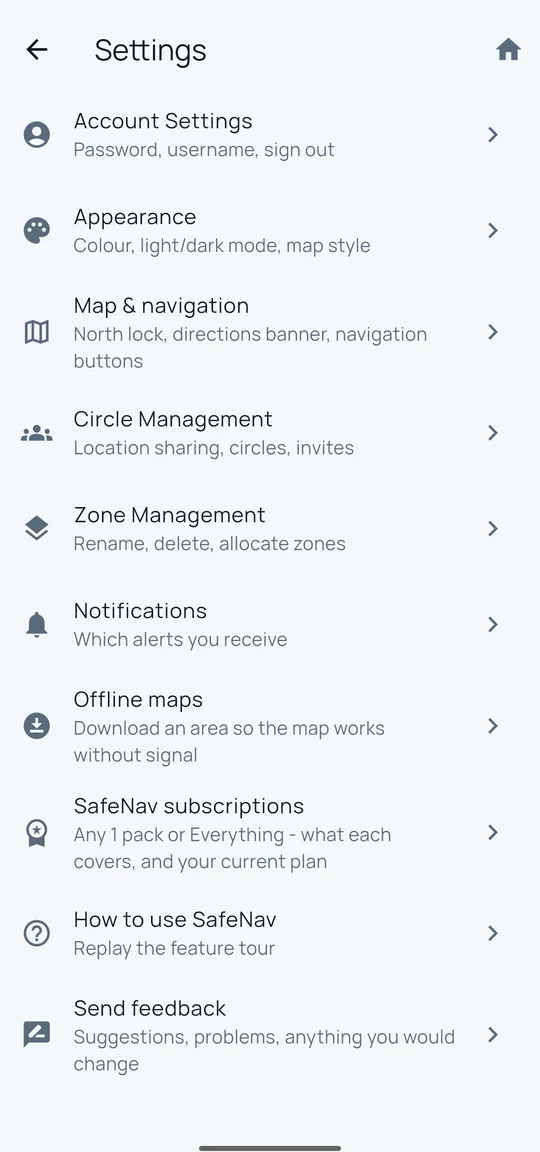
- Account Settings: profile picture (add, replace or remove — visible only to you and to people you share a circle with, never public), your name (what your circles see - 1 to 40 characters, tap Username to change it), email, change password, sign out, delete account (this permanently deletes your SafeNav account and data - it does not cancel a Google Play subscription, which keeps charging until you cancel it separately in Google Play).
- Signing out always stops sharing your location on this phone straight away, and tries at the same time to clear your last known position from your circles' view and give up this phone's ability to receive your old account's alerts. If the server can't be reached for that part (no signal, say), you're still signed out on this phone immediately, and SafeNav finishes clearing the position and the alerts automatically the next time you sign in to that same account on this phone - you'll see a note saying so, and a line in Account Settings until it's done. Separately, if SafeNav can't reach the server at all to end your session, you'll see a note that the old session will stop working on its own within the hour.
- Appearance: a colour for light mode and a separate colour for dark mode - pick from 12 Standard colours (named shades such as Ocean, Violet, Coral), 6 neon Vibrant colours, up to 4 colours you've saved, or any colour from a picker. A status line always shows whether the app will use dark or white text on the colour you're looking at. Also here: theme mode (System, Light, Dark, or Solar, which follows sunrise and sunset at your location) and map style (street map, satellite, or Auto). The street map shows 3D buildings, with lighting that follows your light/dark/Solar mode - a No-go zone can be partly hidden behind a building. Legacy map switches to the older, flat map style without 3D buildings, if you prefer it. Switching it updates the home map straight away, though a trip already under way keeps the style it started with. Switching it before going somewhere with no signal: re-download your offline areas for that place first, or the map may not show there until you do (see Offline maps below).
- Map & navigation: north lock options, Auto-minimise directions, Speed limit warnings (on or off), when the light/dark button shows during navigation (Always, Only at night, Never), and a Testing section with Show zone-routing details on the map (off by default) - draws the area SafeNav searched for No-go zones on a planned route and which zones it actually sent, for people testing that feature rather than everyday use.
- Circle Management, Zone Management, Notifications, SafeNav subscriptions: as described above.
- Offline maps: download a map area so the map works without signal. Routing still needs a connection. A download covers every way you might view it - light and dark, and satellite if you use it - so switching between them later doesn't affect it. If SafeNav's map setup changes in a bigger way (an app update, or switching Legacy map on or off, for instance), the saved area says so and offers a button to bring it up to date - it's never silently dropped. Until you do, that area won't show a map without signal in the style you've switched to. SafeNav also reminds you on the home screen when a saved area doesn't cover the map style you're using now, with a button straight to Offline maps - it keeps reminding you each time you open the app until you open Offline maps from it or dismiss it.
- How to use SafeNav: replay the feature tour.
- Send feedback: suggestions, problems and comments go straight to the SafeNav team, with the app version and phone model attached. The screen also lists every note you have sent, each with its own delete control - deleting one removes it from SafeNav's database. Feedback is otherwise kept for 24 months.
- Send crash reports: a switch, on by default. When on, SafeNav sends crash details - what went wrong, your app version and phone model - to help the team fix problems; they aren't attached to your account. Turn it off and nothing further is sent from your phone.
- Legal: the Terms of Service, Privacy Policy and Refund Policy, the app version, and Fonz Group Ltd's contact details. Each document opens in your phone's own browser, not inside SafeNav.
Installing and updating (testers)
- SafeNav is installed through Google's App Tester app from an email invitation, not the Play Store.
- Android asks to allow installing unknown apps; allow it for the browser and App Tester.
- Google Play Protect asks to scan SafeNav on installs and updates: tap Scan app and the install continues.
- On Samsung phones, Auto Blocker (Settings, then Security and privacy, then Auto Blocker) must be off to install or update, and can switch itself back on.
- Updates arrive as notifications in App Tester.
Common problems
- Directions won't calculate: check the start and destination are inside a supported region and the phone has a connection. If No-go zones block every route, SafeNav offers an Override action on the error itself, or tap the button beside Set destination, then Options, then Ignore No-go zones - either way, for that trip only; see Planning a route above for how it's shown and how it ends.
- The map is blank: check the connection, then close and reopen the app. On the main map screen (not during turn-by-turn navigation), SafeNav also shows a message naming what failed to load (map data, or just labels/icons) rather than leaving the map blank with no explanation; if it points at Offline maps, downloading or updating that area there fixes it for next time.
- Can't sign in or see a circle's members: check you're signed in to the right account and have joined the circle with its invite code.
- The password reset link says it wasn't requested on this phone, has expired, or can't be used: reset links only work on the phone you asked from, once, within an hour. Open SafeNav, tap Forgot password? on the sign-in tab, and open the new email on this phone. Asking for a newer link, or signing in with Google, makes an older link stop working.
- No confirmation or reset email arrives: check the spam folder and wait a few minutes. To get another, try signing in (for a confirmation) or tap Forgot password? (for a reset) - SafeNav sends one new email a minute at most.
- Continue with Google comes back saying the sign-in expired, or wasn't started from this device: tap Continue with Google again and finish in the browser within about 10 minutes. SafeNav only accepts a Google sign-in it started itself on that phone, and ignores sign-in links that arrive any other way.
- After choosing a Google account, a SafeNav web page says Finish signing in instead of the app opening: tap Open SafeNav on that page. It happens when the phone hasn't yet confirmed that SafeNav owns its sign-in link; updating SafeNav usually stops it.
- Told a circle is full, or watchers or circles are limited: Settings, then SafeNav subscriptions, shows the current limits and what a pack would add. Nobody already there is ever removed by a limit - it only stops new additions.
- Anything else, or a bug: Settings, then Send feedback.