Fonz Group Ltd · closed testing
You mark it. SafeNav avoids it.
SafeNav is an Android navigation app that routes around areas you mark on the map, and lets you share your location, your route, and your arrival with a circle of family or friends.
- Closed testing — not on the Google Play Store yet
- Routing works in South Africa, Great Britain (not yet Northern Ireland), and California, Nevada and Arizona
- Android only — iOS hasn’t been built yet
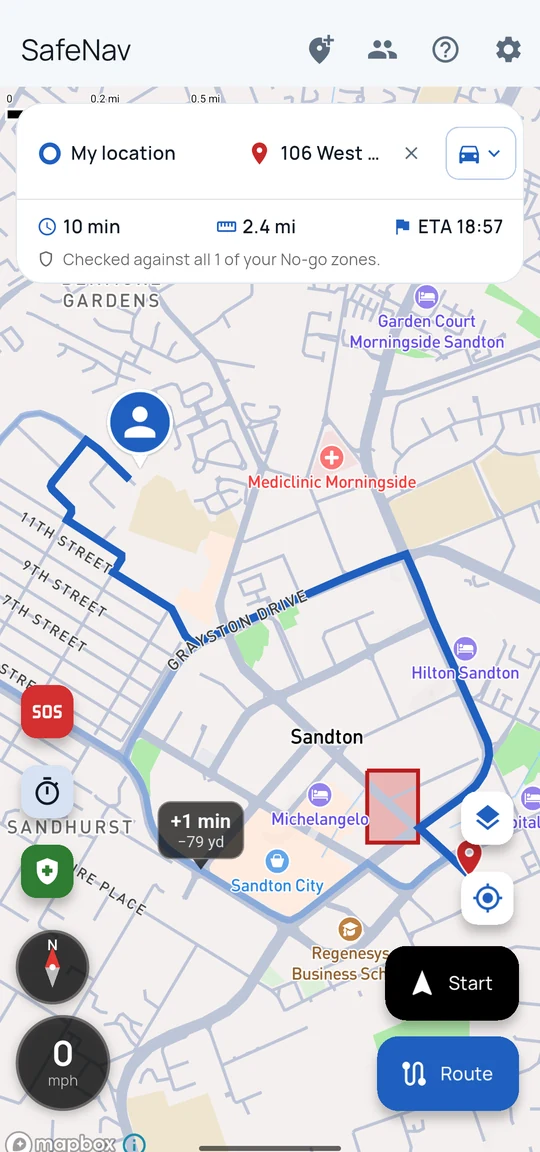
What SafeNav is
Routing around what you choose to avoid
SafeNav is Android navigation with one difference: you mark areas or roads as No-go, and your routes stay out of them. Alongside that, a circle of family or friends can share live location, routes, and safe-zone arrivals with each other — and be reached instantly if one of you sends an SOS.
- You mark the areas — SafeNav holds no crime or danger data of its own
- Routes recalculate automatically if you go off course
- Location sharing is a toggle, on or off, under your control
- SOS sends your location to your circle in one tap
What it does
The features, as built
Everything below is in the app today, not on a roadmap. It’s being tested with a small group of invited testers before any wider release.
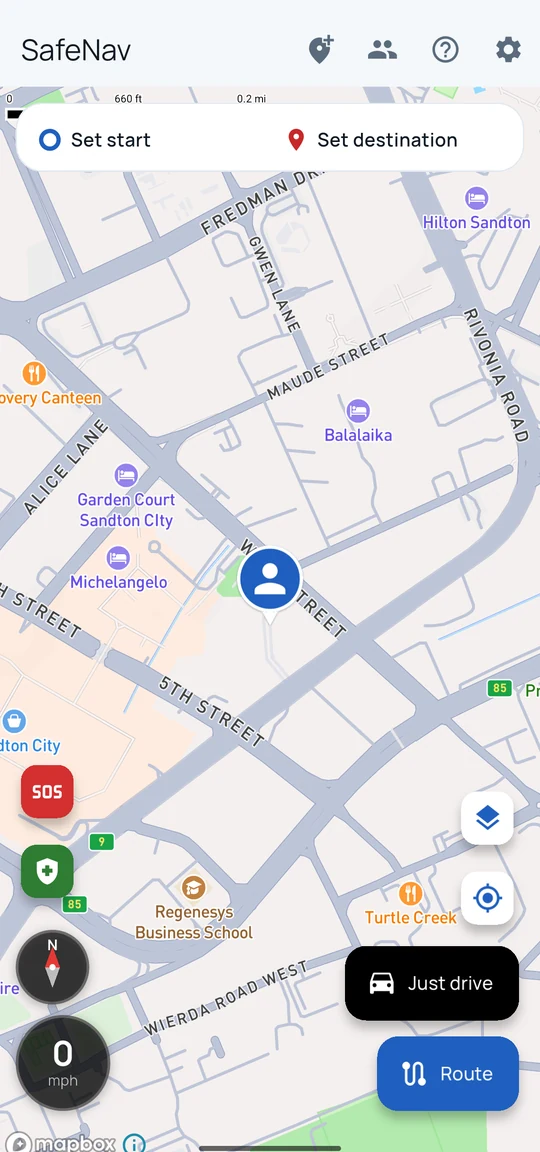
Open it, and there you are
SafeNav opens on the map. Your own marker follows your phone’s GPS while the map is open, so it moves as you do. From here you can set a start and destination and plan a route, mark a No-go zone, send an SOS, or tap Just drive if you have nowhere in particular to go.
The marker is you, and only you. Where you go and which route you take are still your decisions — SafeNav doesn’t make a journey safe.
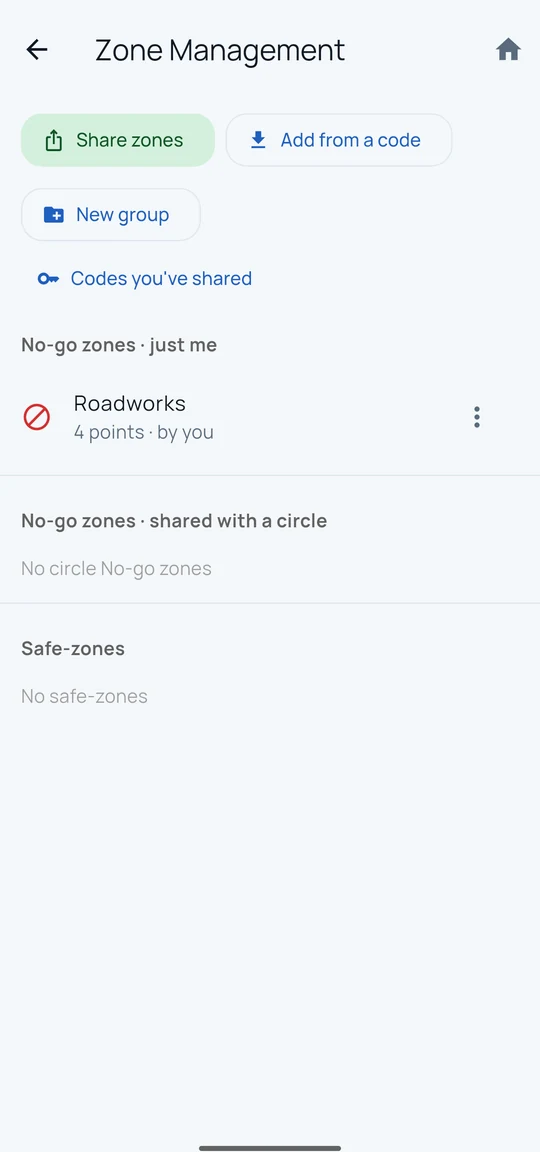
No-go zones you draw, group, and share
Draw an area on the map, search for a place by name, or tap roads directly, and routing stays out of it. Group zones together and switch a whole group on or off, or share a set with someone using an 8-character code. A personal zone can instead be set as a softer avoid zone — SafeNav only goes round it when that costs a few minutes at most, and drives straight through with no warning if there isn’t a quick way round. No-go zones are the ones SafeNav never enters.
- Just me
- Shared with a circle
- Safe zone
You decide what to mark. SafeNav has no crime or safety data of its own, and drawing a zone — No-go or avoid — doesn’t make anywhere else safe.
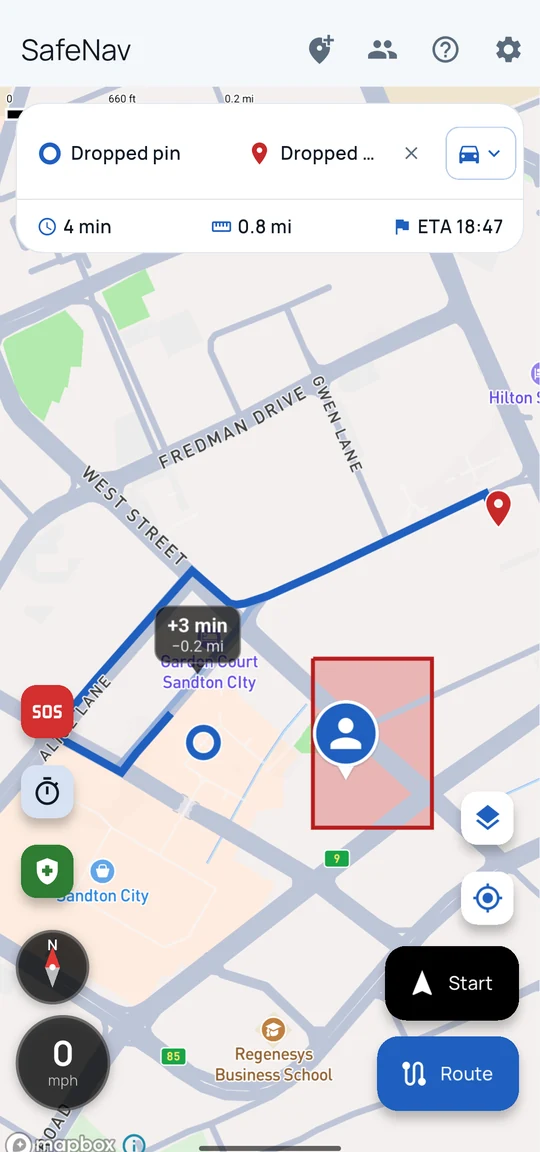
Plan the route, on your terms
Set a start and destination, pick how you’re travelling — car, motorbike, cycle or walk — and see the time, distance and arrival before you go. Compare alternate routes on the map, or use Nearby to add fuel, food or parking as a stop.
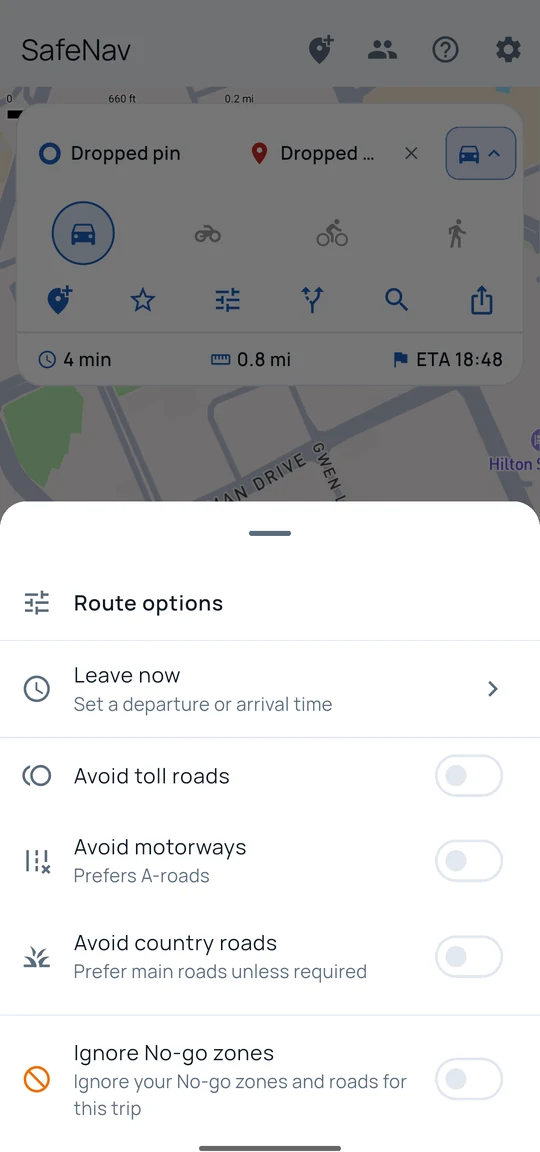
Set how you want to get there
Leave now, or pick a departure or arrival time. Avoid toll roads, motorways, or country roads if you’d rather not use them — or ignore your No-go zones for a single trip when you need to get through.
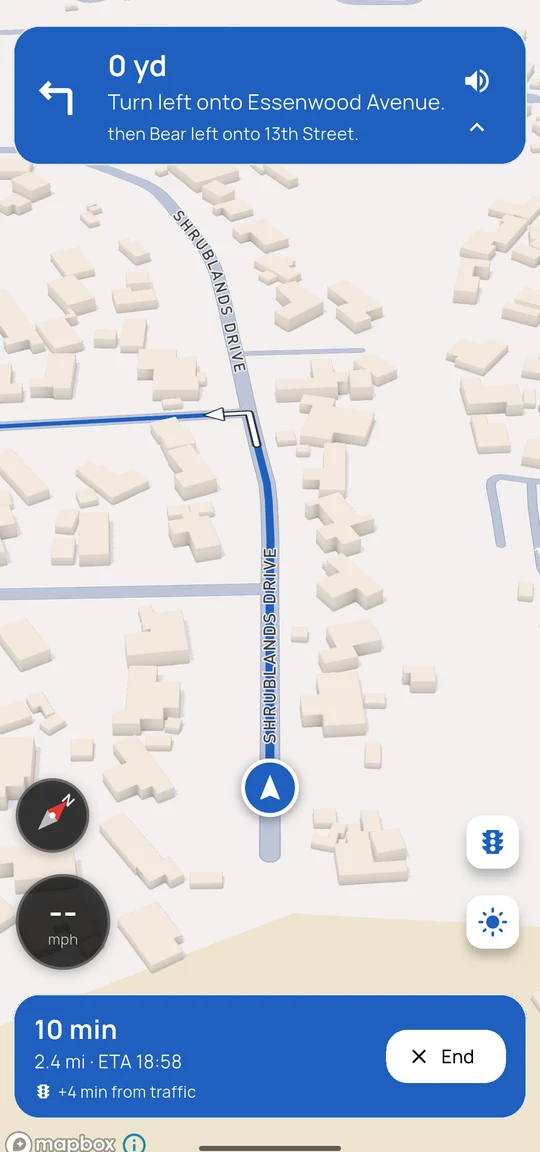
Turn-by-turn navigation
Spoken directions, a live speed limit, and a trip bar showing time, distance and ETA. Miss a turn or leave the road, and SafeNav recalculates automatically. Enter a No-go zone while navigating, and it warns you — on screen and out loud.
Where live traffic data is available, the trip bar shows how many minutes of the ETA it’s adding; elsewhere, times assume clear roads.
Just drive
No destination in mind? Tap Just drive from the map for a driving screen with your speed and the speed limit, a compass, your zones on the map, a heads-up when a No-go zone is ahead, and the same No-go zone warning as turn-by-turn navigation, spoken and on screen if you cross into one. There’s no route, so nothing to reroute.
Circles & live location
Share your live location, your route, and your arrival with a circle of family or friends — and see theirs. Sharing runs in the background while it’s switched on, and it’s your toggle to flip.
Safe zones & SOS
Set a safe zone like home, and your circle finds out when you arrive or leave. If something goes wrong, SOS sends your current location to everyone in your circles immediately.
Offline maps
Download the map for an area you’re travelling to, so you can see where you are without a signal — the download covers light and dark mode, so switching between them doesn’t affect it. If it ever needs updating, SafeNav says so and offers to refresh it, rather than leaving the map blank. Planning a new route still needs a connection.
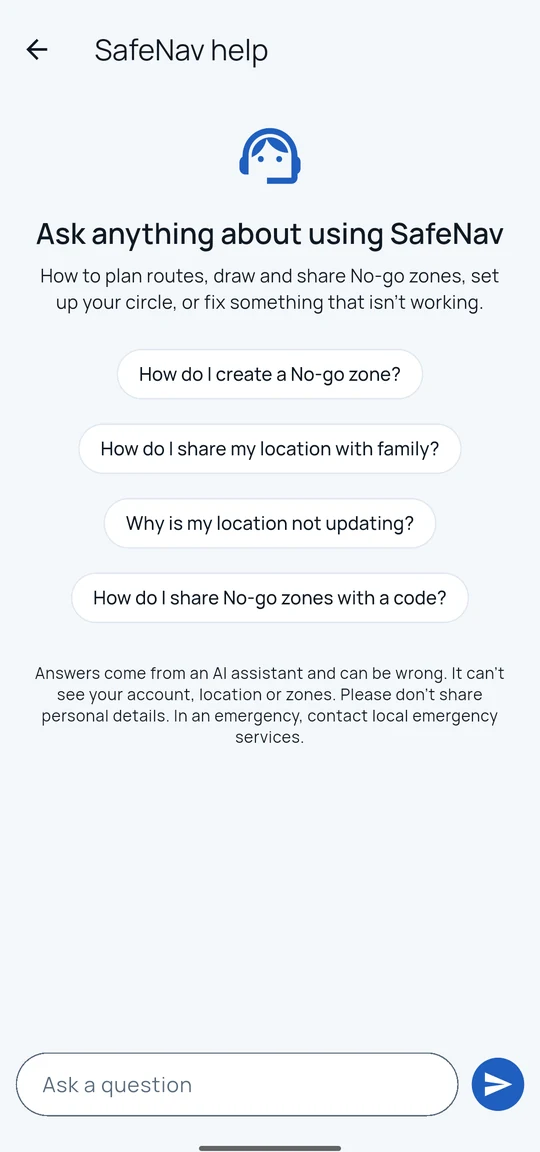
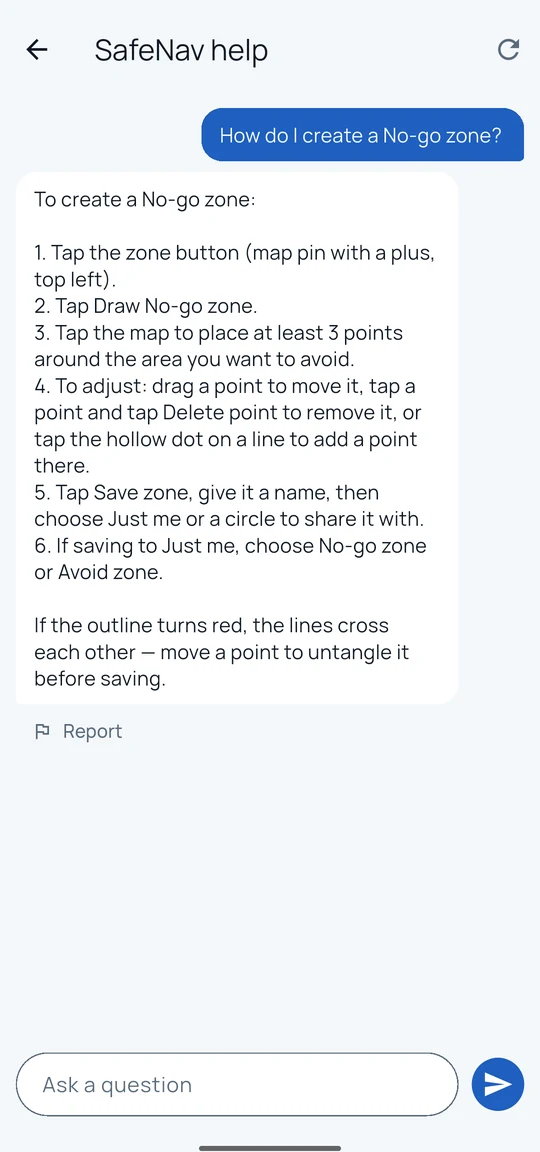
Help assistant
Tap the question mark in the app for answers about how SafeNav works, drawn from a built-in guide to the app itself. It can’t see your account, your location, or your zones.
“Answers come from an AI assistant and can be wrong. It can’t see your account, location or zones. Please don’t share personal details. In an emergency, contact local emergency services.” — shown above every conversation, in the app
Where things stand
Honestly, as of today
Closed testing
SafeNav is being tested with a small group of invited testers. It is not yet available on the Google Play Store.
Where routing works
Turn-by-turn directions currently work in South Africa, Great Britain (England, Scotland and Wales), and California, Nevada and Arizona. Northern Ireland is not covered yet. Outside those areas, routing doesn’t work yet.
What it doesn’t do
SafeNav has no crime or safety data. It doesn’t know which areas are dangerous — you decide that — and it can’t guarantee that a route, or a journey, is safe.
Not a substitute for emergency services
SOS alerts the people in your circles with your location. If you’re in danger, call your local emergency number first.
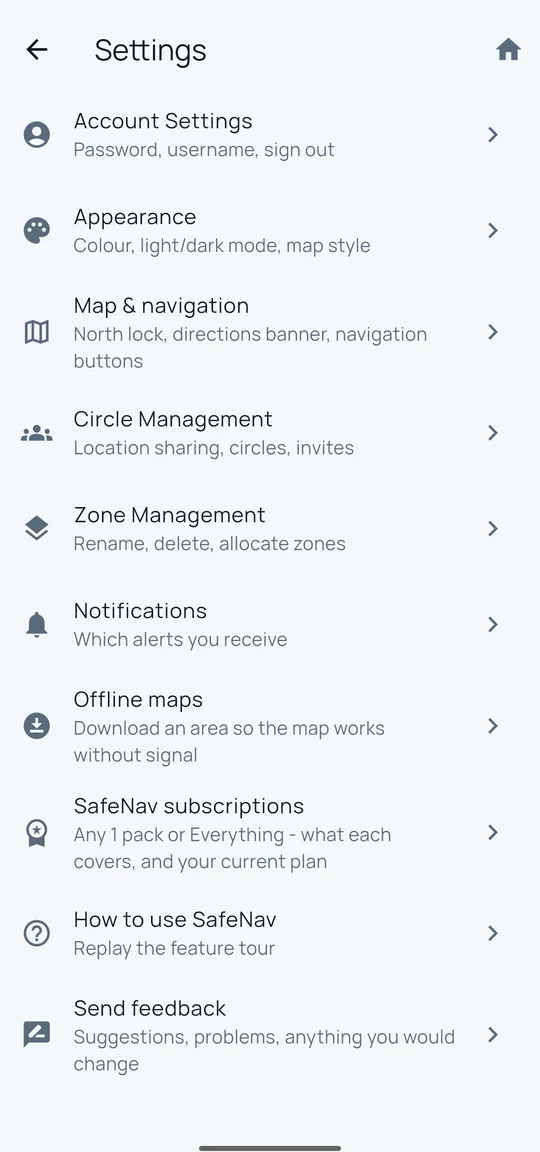
Everything else lives in Settings
Appearance — your own colour for light mode and another for dark, plus System, Light, Dark or Solar (follows sunrise and sunset) — north-lock behaviour, the directions banner, notifications, offline maps, and Send Feedback: all in one list.
Read the full user guide for a walkthrough of every screen, or tap the question mark in the app to ask.
Get in touch
Questions, feedback, or a request about your data
SafeNav is run by Fonz Group Ltd. For anything about the app, your account, or this site, email us directly — there’s no ticket system, just a person reading it.
Your data
What we collect, and how to delete it
SafeNav collects your device location, including in the background while you have sharing switched on, to power live location, safe zones, and SOS. We do not sell your data. Free accounts may see a small, non-personalised ad on the route-planning screen; we never give advertisers your precise location, circles, trips or zones, and any paid plan removes ads entirely.
- Background location is collected only while you have sharing switched on.
- You can delete your account and all your data at any time, from inside the app: Settings → Account Settings → Delete account. This is immediate and irreversible.
- Full detail — what’s collected, who it’s shared with, and your rights — is in the privacy policy.